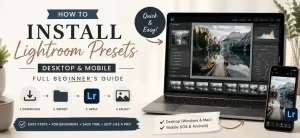
If you’ve just downloaded your first preset pack and you’re not quite sure what to do next, you’re in the right place. Installing Lightroom presets is simple once you know where to look — and in this guide, we’ll walk you through the exact steps for both Lightroom Classic (desktop) and Lightroom CC (mobile), plus a few common issues and how to fix them.
- What File Formats Do Lightroom Presets Come In?
- How to Install Presets on Lightroom Classic (Desktop)
- Step 1 — Locate Your Preset Files
- Step 2 — Open the Develop Module
- Step 3 — Import Presets via the Presets Panel
- How to Install Presets on Lightroom Mobile (CC)
- Step 1 — Download the Preset File to Your Phone
- Step 2 — Import via “Add Photo” or “Sync”
- Step 3 — Apply the Preset to Your Photos
- Common Installation Problems (and How to Fix Them)
- Tips for Getting the Best Results from Any Preset
- Ready to Try Your First Preset?
What File Formats Do Lightroom Presets Come In?
Before installing anything, it helps to know what you’re working with. Presets typically come in one of these formats:
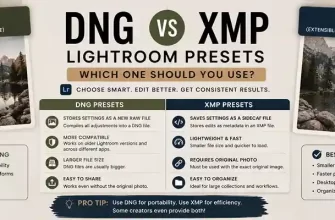
- .XMP — the most common format today. Works with both Lightroom Classic and Lightroom CC (mobile and desktop).
- .DNG — used specifically for Lightroom Mobile. These are actual image files with the preset settings baked in as metadata — you import them like a photo, then save the settings as a preset.
- .LRTEMPLATE — an older format used by older versions of Lightroom Classic. Less common now, but you may still come across it.
Most preset packs you’ll find today — including the ones we feature on this site — use .XMP or .DNG, so we’ll focus on those.
How to Install Presets on Lightroom Classic (Desktop)
Step 1 — Locate Your Preset Files
After downloading your preset pack, unzip the folder if needed. You should see a list of files ending in .xmp. Keep this folder somewhere easy to find — you’ll need to point Lightroom to it in the next step.
Step 2 — Open the Develop Module
Open Lightroom Classic and go to the Develop module (press D or click “Develop” in the top menu). On the left side panel, you’ll see a section called Presets.
Step 3 — Import Presets via the Presets Panel
- Right-click anywhere in the Presets panel.
- Select Import Presets.
- Navigate to the folder where your
.xmpfiles are saved. - Select all the files you want to import and click Import.
That’s it — your presets will now appear in the Presets panel, usually under a folder named after the pack. Click any photo, then click a preset name to apply it instantly.
How to Install Presets on Lightroom Mobile (CC)
Step 1 — Download the Preset File to Your Phone
Make sure the .dng or .xmp files are saved to your phone’s storage (or accessible via cloud storage like Google Drive or Dropbox).
Step 2 — Import via “Add Photo” or “Sync”
For .DNG files:
- Open the Lightroom app.
- Tap the + icon to add a photo.
- Select Add Photo and choose the
.dngfile from your storage — Lightroom will treat it as an importable image.
For .XMP files (Lightroom CC newer versions):
- Go to your photo library.
- Tap the Presets icon at the bottom of the editing screen.
- Tap the three-dot menu in the top corner of the Presets panel.
- Select Import Presets and choose your
.xmpfile.
Step 3 — Apply the Preset to Your Photos
Open any photo you want to edit, tap the Presets icon, find your imported preset under “User Presets” (or the pack’s folder name), and tap to apply.
iOS vs Android note: The steps above work the same way on both platforms, though menu icons may appear in slightly different positions depending on your app version. If you don’t see an option exactly as described, check that your Lightroom app is updated to the latest version.
Common Installation Problems (and How to Fix Them)
“My preset isn’t showing up.”
Double-check you imported it into the correct module (Develop, not Library) and that the file format matches what your Lightroom version supports. Restarting the app after import also helps.
“The colors look different than the preview image.”
This is normal — preset previews are often shot in specific lighting conditions. The same preset can look noticeably different on a photo taken indoors versus outdoors, or in different light. This isn’t a bug; it’s just how presets interact with your original exposure and white balance.
“Lightroom says the file format isn’t supported.”
This usually means you’re trying to import an .xmp preset into an older version of Lightroom Mobile, or a .dng into Lightroom Classic incorrectly. Make sure you’re using the correct import method for your specific app and file type, as outlined above.
Tips for Getting the Best Results from Any Preset
- Adjust exposure and white balance first. Presets work best as a starting point, not a magic fix — correcting major exposure issues before applying a preset gives much more consistent results.
- Fine-tune after applying. Most presets are designed to be a base look — feel free to tweak the intensity, shadows, or saturation afterward to match your specific photo.
- Use presets consistently for a cohesive feed. If you’re a blogger or content creator, sticking to one preset family (or a small set of related ones) across your photos creates a much more recognizable, professional aesthetic.
Ready to Try Your First Preset?
Now that you know how to install presets on both desktop and mobile, it’s time to put one to use. Browse our curated collections to find a style that fits your story:
This post may contain affiliate links. If you make a purchase through one of these links, we may earn a small commission at no extra cost to you. See our [Affiliate Disclosure] for details.