You’ve just downloaded a preset pack and opened the folder — and instead of one type of file, there are two: .dng and .xmp. Now you’re not sure which one to use, or whether you even need both.
This is one of the most common points of confusion for anyone new to Lightroom presets. The good news is that the difference is straightforward once you understand what each format is actually for. By the end of this guide, you’ll know exactly which file to use depending on your device and version of Lightroom.
- What Is an XMP Preset?
- What Is a DNG Preset?
- Key Differences at a Glance
- Which One Should You Use?
- If you edit on desktop (Lightroom Classic or CC)
- If you edit on mobile (Lightroom iOS or Android) — newer app version
- If you edit on mobile — older app version
- If you edit on both desktop and mobile
- How to Tell Which Version of Lightroom Mobile You Have
- Does the Format Affect the Quality of the Preset?
- What If My Preset Pack Only Includes One Format?
- Quick Reference: Which File to Use
- Ready to Try Your First Preset?
What Is an XMP Preset?
XMP stands for Extensible Metadata Platform. In the context of Lightroom presets, an .xmp file is a small text-based file that stores a list of editing settings — exposure, contrast, white balance, tone curve, color grading, and so on.
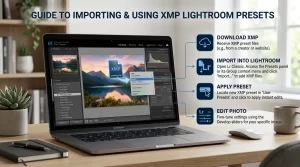
When you apply an XMP preset in Lightroom, the app reads that list of settings and applies them to your photo. The preset itself doesn’t contain any image data — it’s purely a set of instructions.
XMP presets work with:
- Lightroom Classic (desktop)
- Lightroom CC (desktop)
- Lightroom Mobile (newer versions — iOS and Android)
- Adobe Camera Raw
XMP is the current standard format for Lightroom presets and the one you’ll encounter most often in modern preset packs.
What Is a DNG Preset?
DNG stands for Digital Negative. Originally, DNG is Adobe’s open RAW image format — but in the context of presets, a .dng file is actually a blank or minimal image with the preset settings saved into its metadata.
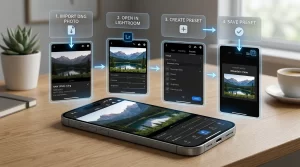
Think of it as a workaround: because older versions of Lightroom Mobile couldn’t import .xmp files directly, preset designers started packaging their settings inside .dng files. You import the DNG like a photo, then copy its settings and save them as a preset in your library.
DNG presets are used with:
- Lightroom Mobile (older versions, especially before 2019)
- Any version of Lightroom Mobile when XMP import isn’t available
DNG was the standard for mobile presets for several years, which is why many preset packs still include both formats — to ensure compatibility with older app versions.
Key Differences at a Glance
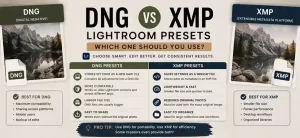
| XMP | DNG | |
|---|---|---|
| File type | Settings file (text-based) | Image file with embedded settings |
| File size | Very small (a few KB) | Larger (several MB) |
| Primary use | Lightroom Classic, CC, newer Mobile | Lightroom Mobile (older versions) |
| Import method | Import via Presets panel | Import as a photo, then save as preset |
| Current standard | Yes | Legacy (still supported) |
| Comes in preset packs | Almost always | Often included for compatibility |
Which One Should You Use?
The answer depends on where you’re editing.
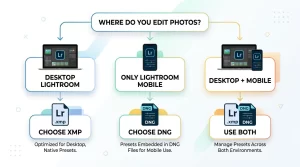
If you edit on desktop (Lightroom Classic or CC)
Use XMP. It’s the native format for desktop Lightroom, imports directly into the Presets panel, and works exactly as expected. You don’t need the DNG files at all.
If you edit on mobile (Lightroom iOS or Android) — newer app version
Try XMP first. Lightroom Mobile has supported XMP import since 2019. If your app is updated, you can import XMP presets directly without needing the DNG versions.
To check: open the Lightroom app → tap the Presets icon on any photo → tap the three-dot menu → if you see “Import Presets”, your version supports XMP.
If you edit on mobile — older app version
Use DNG. If your Lightroom Mobile doesn’t have an “Import Presets” option, you’ll need the DNG files. Import them as photos into your Lightroom library, open one, then tap the three-dot menu → “Create Preset” to save the settings.
If you edit on both desktop and mobile
Use XMP on desktop, DNG on mobile (if your mobile version is older). Most preset packs include both formats precisely for this reason — you can use whichever format fits your device without any loss of quality or settings.
How to Tell Which Version of Lightroom Mobile You Have
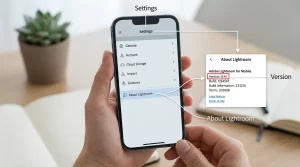
- Open the Lightroom app on your phone
- Tap the profile icon in the top-left corner
- Tap App Settings → scroll to the bottom
- You’ll see the current version number
If your version is 5.0 or newer (released mid-2019), you can use XMP directly. If it’s older than that, stick with DNG.
Does the Format Affect the Quality of the Preset?
No. The visual result of a preset is identical whether you import it as XMP or DNG — the format is just the container. What matters is the actual settings inside, not how they’re packaged.
The only practical difference is the import method and compatibility. Once the preset is saved in your Lightroom library, it works exactly the same way regardless of which format you used.
What If My Preset Pack Only Includes One Format?
Only XMP — no problem if you’re on a recent version of Lightroom (desktop or updated mobile). If you’re on an older mobile version without XMP support, you can convert XMP to DNG using a free tool like the Adobe DNG Converter desktop app.
Only DNG — no problem on mobile. On desktop, you’ll need to open the DNG file as a photo in Lightroom, then manually save the settings as a preset. It takes an extra step but works perfectly.
Both formats included — easiest option. Most quality preset packs from platforms like CreativeFabrica include both XMP and DNG files, so you always have the right format for your device without any extra steps.
Quick Reference: Which File to Use
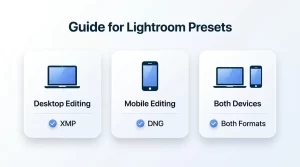
Editing on Lightroom Classic (desktop)?
→ Use XMP

Editing on Lightroom CC (desktop)?
→ Use XMP

Editing on Lightroom Mobile, app version 5.0+?
→ Use XMP

Editing on Lightroom Mobile, app version older than 5.0?
→ Use DNG

Editing on both desktop and mobile (older)?
→ Use XMP on desktop, DNG on mobile
Ready to Try Your First Preset?
Now that you know which format to use, browse our curated preset collections and find a style that fits your photography. Every pack featured on this site includes both XMP and DNG formats — so you’re covered on any device.
- Moody Lightroom Presets — dark, cinematic tones
- Aesthetic Lightroom Presets — soft, editorial looks
- Film Lightroom Presets — analog grain and natural colors
- Travel Lightroom Presets — vibrant, warm, adventure-ready
New to installing presets?
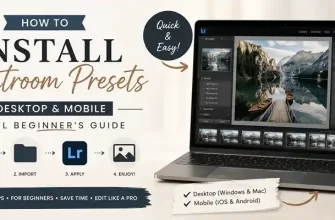
→ How to Install Lightroom Presets on Desktop & Mobile
This post may contain affiliate links. If you make a purchase through one of these links, we may earn a small commission at no extra cost to you. See our [Affiliate Disclosure] for details.